
Developer Setup
Configure your application to authenticate via rNet, empowering users to connect their wallets and spend their own AI credits directly within your product.
Unified Accounts & Developer Upgrades
rNet features a unified sign-in and registration flow. By default, every account is provisioned as a standard User. To access powerful developer tools, you must explicitly upgrade your account role from your profile settings.
1
Initialize Your Account
Visit the rNet platform and register or log in using your email address. There are no separate developer and user accounts—everyone uses the same unified portal.
2
Upgrade to Developer Role
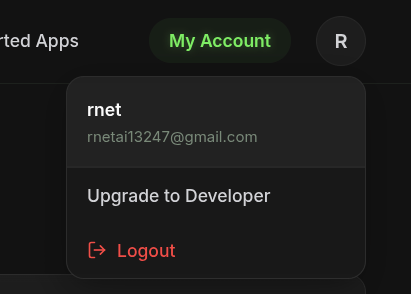
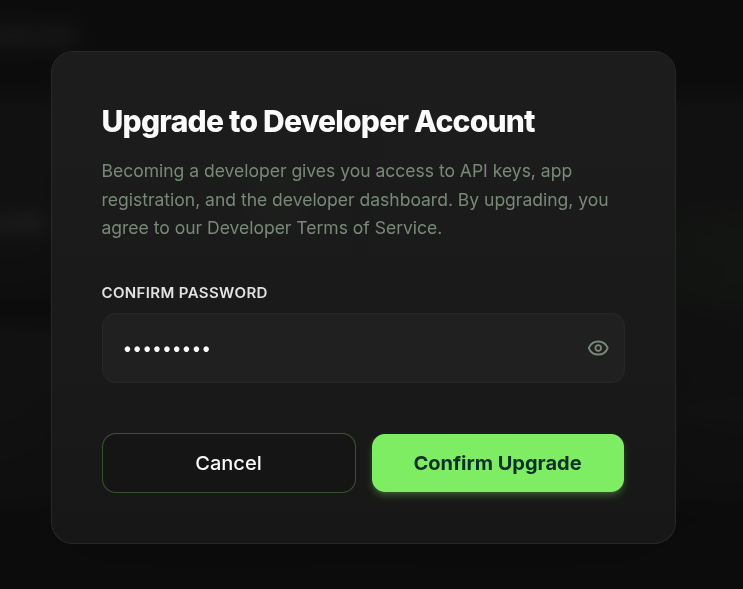
Click on your Profile in the top navigation bar. From the account menu, select Upgrade to Developer. You will be prompted to insert your password and confirm the role update. Once confirmed, your account instantly unlocks full dashboard access.
3
Access the Command Center
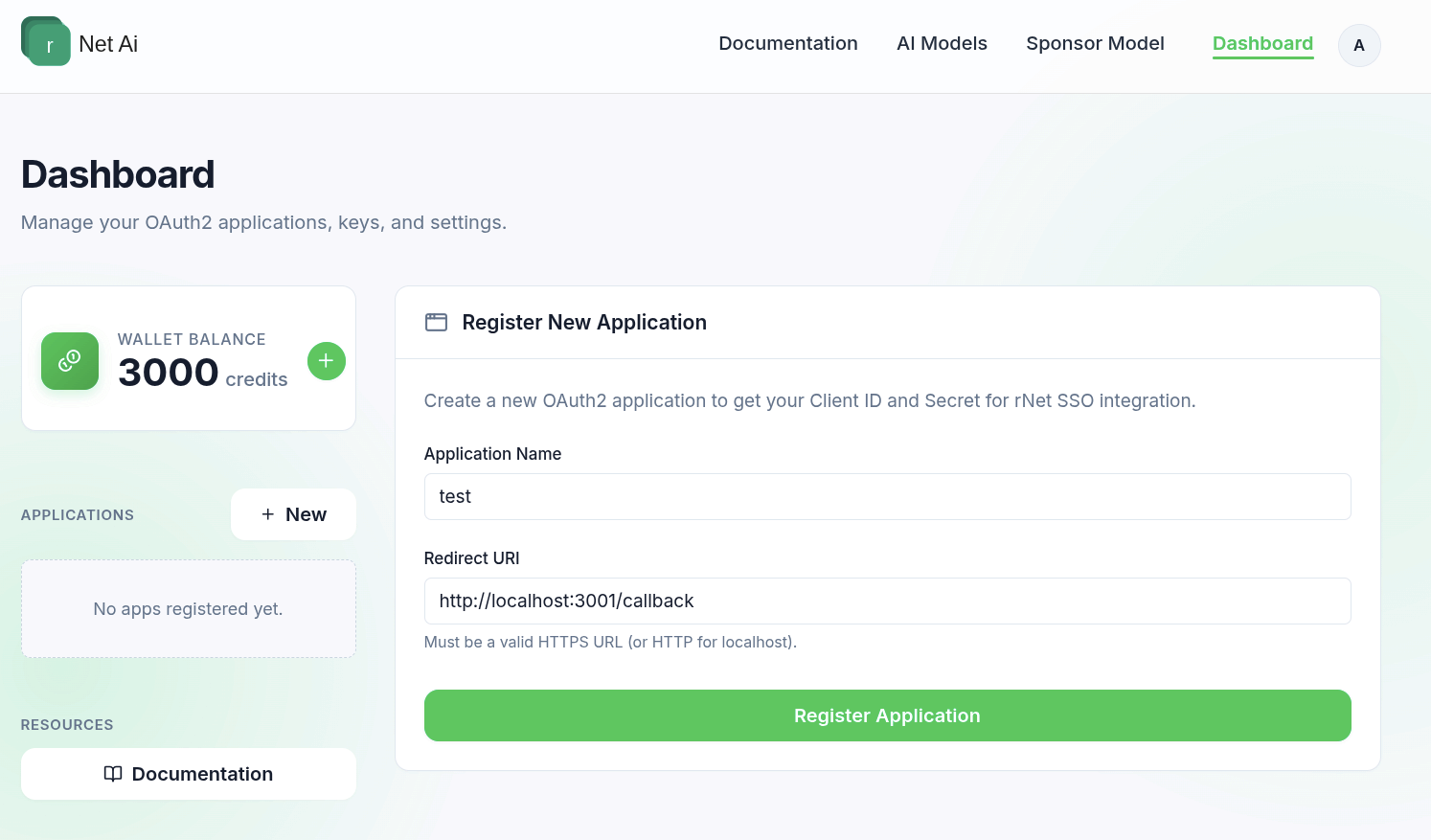
Click Dashboard in the top navigation bar. You will be routed to your primary developer dashboard, displaying real-time wallet balances, registered client applications, and integration resources.
4
Dashboard Capabilities
Your dashboard provides absolute control:
- Wallet Balance: Monitor your centralized rNet credit pool, universally accessible across all connected apps.
- Application Registry: View all active applications and their associated Client IDs. Provision new applications by clicking + New.
- Developer Resources: Instant access to SDKs, API references, and integration guides.
Interface Preview
Integration Checklist
- Create and verify your rNet account.
- Upgrade your role to Developer from your profile settings.
- Access the Dashboard from the top navigation.
- Provision your first application (see App Registration).
- Securely export your
Client IDandClient Secretinto your backend environment. - Initialize the official rNet SDK for your stack (SDK Overview).
- Implement the OAuth2 flow to allow users to authenticate and authorize credit usage.
Credential Security
Your Client Secret is generated and displayed only once during registration. It must be immediately stored in your backend environment variables (e.g.,
.env). Never commit this secret to version control or expose it to client-side code.Ready for the next step?
Proceed to App Registration to provision your first client.